LinkedIn with Postey
How to Schedule LinkedIn Posts: Write Them in Claude or ChatGPT, Approve in Postey
Turn my notes on pricing into a LinkedIn post and put it in Postey for Tuesday, 9 AM.
Postey create_postDone. It’s a draft in Postey for Tue 9:00 AM, waiting for your OK.
We raised prices and lost two customers. It was still the right call. Here’s why.
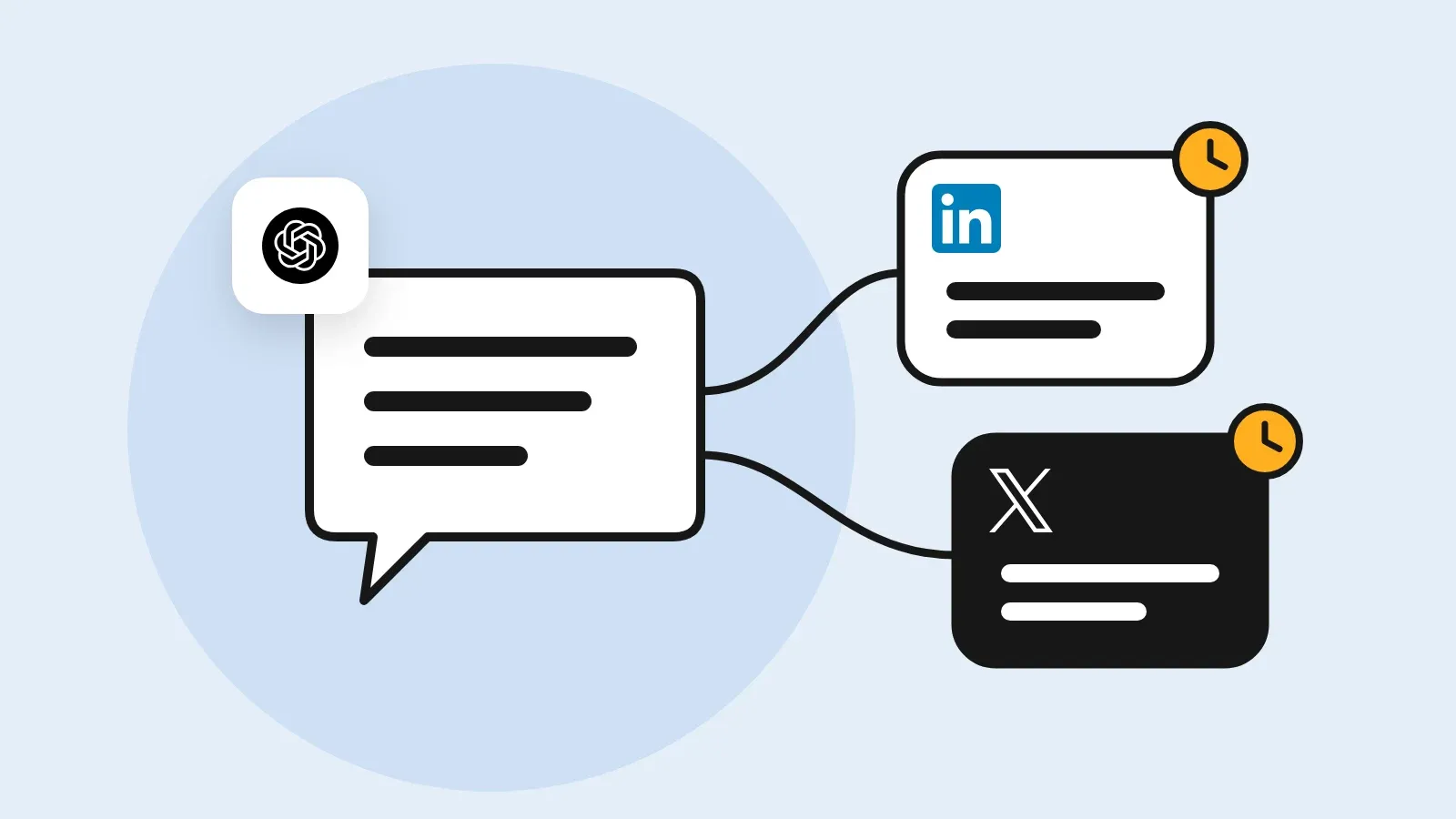
Approve to scheduleYou raised your prices, lost two customers, and know exactly what you’d say about it on LinkedIn. Then the week fills up, and the post stays in your notes. Connect Postey to Claude or ChatGPT, and those notes become a scheduled LinkedIn post from the chat you already have open, waiting for your approval.
How to schedule a post in LinkedIn itself
Yes, you can schedule posts on LinkedIn without any other tool. LinkedIn lets you schedule from 10 minutes to 3 months ahead on your profile, and from one hour to 3 months ahead on a Page you manage.
On your profile, on desktop
- Click Start a post at the top of your feed and write the post.
- Click the clock icon in the lower right.
- Pick the date and time, then click Next.
- Check the time shown above the post and click Schedule.
On your profile, in the app
- Tap Post and write the post.
- Tap the clock icon in the upper right.
- Pick the date and time, tap Next, then tap Schedule.
On a company Page
- Open the Page’s admin view and go to Page posts.
- Click Start a post, then the schedule icon in the lower right.
- Pick the date and time, click Next, finish the post and click Schedule.
Limits to know
- Profiles cannot schedule events or jobs.
- Pages cannot schedule events, posts with several photos, reshares, polls, jobs or service posts.
- Only super admins and content admins of a Page can schedule its posts.
- Scheduled posts are listed under the clock icon, where you can edit, reschedule or delete them.
Checked on 16 November 2026 against LinkedIn Help: Schedule posts, LinkedIn Help: Schedule a LinkedIn Page post. The rest of this guide shows the Postey way.
Go from notes in Claude to a scheduled LinkedIn post
- Connect LinkedIn in Postey.
- Add Postey as a connector in Claude or ChatGPT. You do this once.
- Paste your notes and ask for a LinkedIn post for Tuesday at 9 AM.
- Open the draft in Postey, fix anything that isn’t you, and approve it.
Get read past “see more” without a clickbait opener
LinkedIn shows a few lines before “see more”. Spend them on a decision you made and what it cost. So give Claude more than a topic: tell it what changed, what you gave up and what you’d tell a founder facing the same call.
Excited to share some thoughts on pricing.
We raised prices and lost two customers. It was still the right call. Here’s why.
Your reader gets the decision, the cost and a reason to tap “see more”, all in the lines LinkedIn shows.
Done. It’s a draft in Postey for Tue 9:00 AM. Open Postey to approve it.
We raised prices and lost two customers. It was still the right call. Here's why.
Draft · waiting for your OKDo it in one message. Add Postey to Claude or ChatGPT as a connector and sign in once, then paste this. Nothing goes out until you approve it. No AI assistant? Write and schedule the post in Postey’s Create screen instead.
Using Postey, turn these notes into a LinkedIn post in my voice: [paste your notes]. Open with the decision I made, say what it cost, and end with one thing a reader in my position could try. No hashtags and no “excited to share”. Save it as a draft. When I approve it, schedule it for Tuesday at 9 AM.
Reach the evening crowd without posting twice
Open the draft, read it once as your reader would, and pick the time. Under After it’s live, add a repost 12 hours later, so people who check later see it too. You get one repost on LinkedIn.
Draft your next LinkedIn post from Claude. Try it free
Watch Postey work inside ClaudeBefore you schedule it
- The first lines say what happened, before “see more”.
- You’ve read it aloud, and every line sounds like you.
- Every number in it is one you can back up.
- The repost is set for 12 hours later.
Two mistakes worth avoiding
- Opening with “Excited to share”. It spends the only lines people see on nothing. Open with what happened instead.
- Posting Claude’s first draft as it is. It gets you most of the way, not all of it. Read it once and cut anything you wouldn’t say to a customer.
Frequently Asked Questions
Can you schedule posts on LinkedIn?
Yes. LinkedIn’s own composer schedules posts on your profile from 10 minutes to 3 months ahead, and on a Page from one hour to 3 months ahead. Click the clock icon before you post.
How do I schedule a LinkedIn post for later?
Write the post, click the clock icon, pick a date and time, click Next, then Schedule. In Postey you can also ask Claude or ChatGPT to save it as a draft and schedule it once you approve.
Where do I find my scheduled LinkedIn posts?
Open the post box and click the clock icon, then View all scheduled. There you can edit a post, change its time or delete it. In Postey, scheduled posts sit on one calendar with your other networks.
Why use Postey instead of LinkedIn’s scheduler?
LinkedIn schedules one post on one network. Postey plans LinkedIn next to eight other networks, adds a repost 12 hours later, and lets Claude or ChatGPT draft posts that wait for your approval.
Your notes are already in a chat window. Ask for Tuesday’s post there, approve it in Postey, and a busy week stops deciding whether you post.